3
Open your BusyBox D.
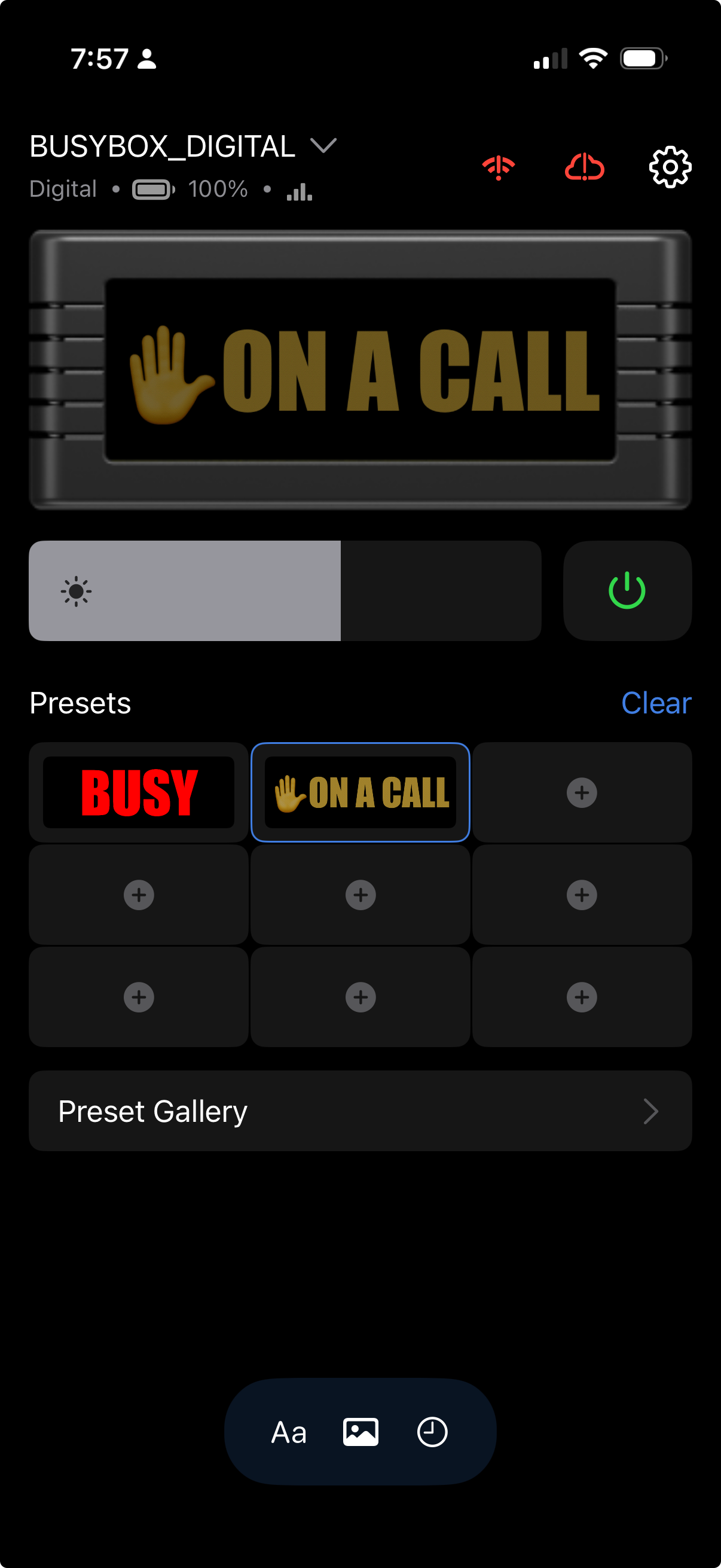
Open the BusyBox app and connect to your D. On the Presets screen, tap the picture icon at the bottom.
A few pixels. Your kind of BusyBox.
1 mm overlap on every edge. Enter the full sign width for an exact preview; until then the rim is illustrative.
BusyBox D artwork uses pixels, not millimeters. These measurements apply only to physical SVG exports. The editor and PNG always use the 8:3 display ratio.
The sign / artwork width and height above set the physical size for these exports.
Height is calculated at 8:3. No physical size is assumed.
Color SVG includes all visible layers. CAD SVG includes composited pixels matching the selected ink, as closed outlines; import into Fusion, check scale, then extrude. Adjacent rows may need joining. Print SVG at 100% / actual size. No STL or fitting geometry is generated.
Your design is ready. Here’s how to make it your next preset.
Use Download PNG above. Keep the image file—you’ll upload the PNG, not the editable project file.
Already creating on your phone? You’re ready. Otherwise, use AirDrop or a cloud drive to transfer the PNG. Make sure you can find it in your phone’s Files before continuing.
Open the BusyBox app and connect to your D. On the Presets screen, tap the picture icon at the bottom.
Choose Files, then Add from Files. Find and select the PNG you just made.
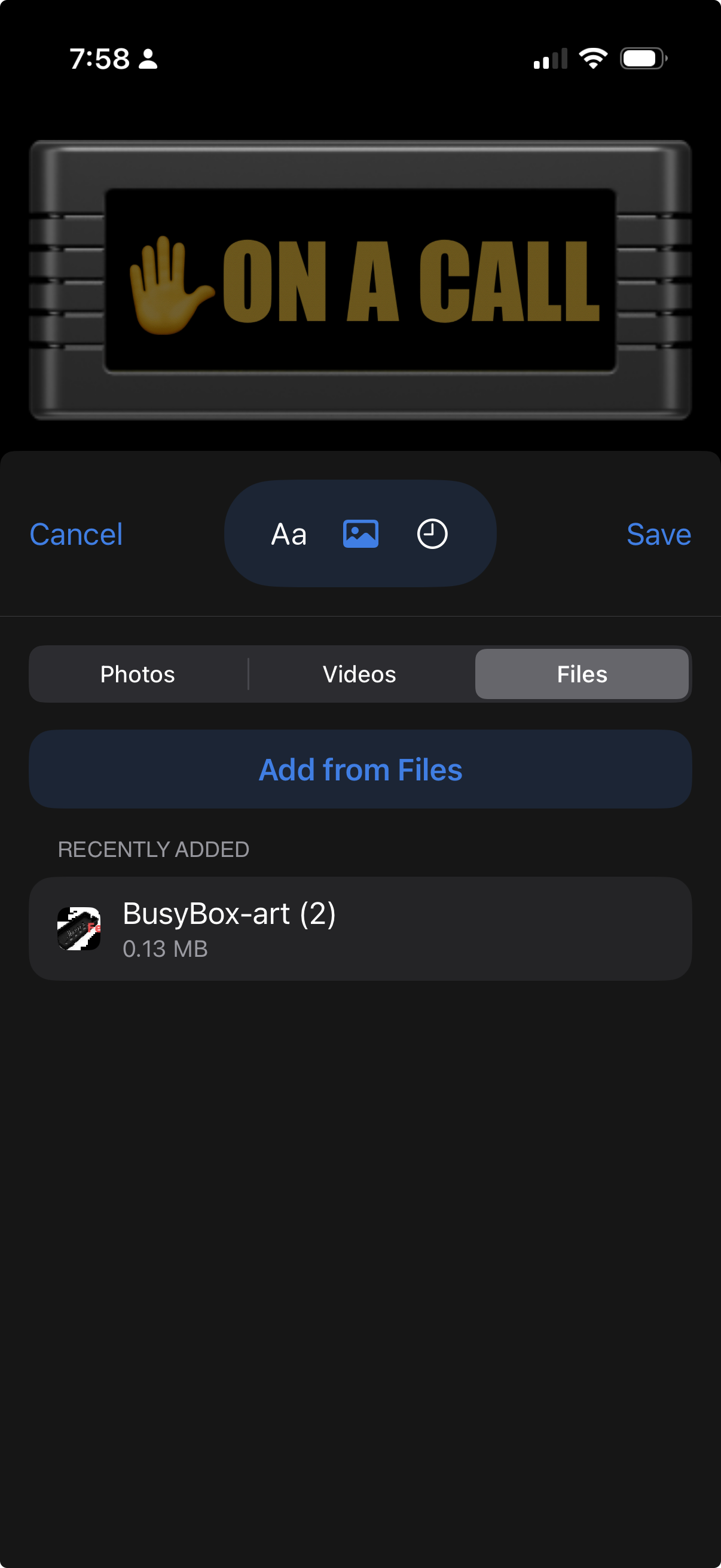
Upload your selected image, tap Save, and choose its preset location. Then select your new preset on the D.
Your art. Your sign. Time to show it off.
Screenshots show the iPhone app. The Upload action and preset-location selection follow the steps above; they are not shown in these two screens.
Our Pixel Studio keeps things simple so you can make your first BusyBox sign in minutes. Ready to take it to the next level? These tools go beyond what we provide, with deeper pixel-art controls, richer design features, and more room to explore.
 PIXEL ART + SPRITESPiskel ↗A free browser editor for detailed pixel art and animated sprites, with live animation previews. A great next step for building characters and experimenting frame by frame.Explore Piskel (opens in a new tab)↗
 DRAW + DISCOVERPixilart ↗Create pixel art in your browser, then explore a community full of artwork, palettes, tutorials, and creative challenges. Ideal when you want inspiration as well as drawing tools.Explore Pixilart (opens in a new tab)↗
 DEEPER PIXEL CONTROLAseprite ↗A dedicated desktop pixel-art editor with animation timelines, layers, custom brushes, and precise palette controls. Built for going deep on the details. Paid software.Explore Aseprite (opens in a new tab)↗
 TEMPLATES + GRAPHICSCanva ↗Go beyond pixels with ready-made templates, photo editing, graphics, and type. A useful choice for turning a message or image into a polished sign without starting from scratch.Explore Canva (opens in a new tab)↗
 PRECISE CUSTOM DESIGNFigma ↗Build your own layouts with vector shapes, images, and typography on a collaborative canvas. Great for carefully arranged messages, custom graphics, and reusable sign designs.Explore Figma (opens in a new tab)↗
Bring it back to your BusyBox D. For a still sign, design at 1280 × 480 pixels when possible and export a PNG. Use Image → Import image here to frame it, then download your finished PNG for the BusyBox app. Choose Ultra detail to retain the most detail.
Website previews belong to their respective creators. Links open in a new tab.